
Non-Manifold Edges Explained: Fix Them Before You Slice
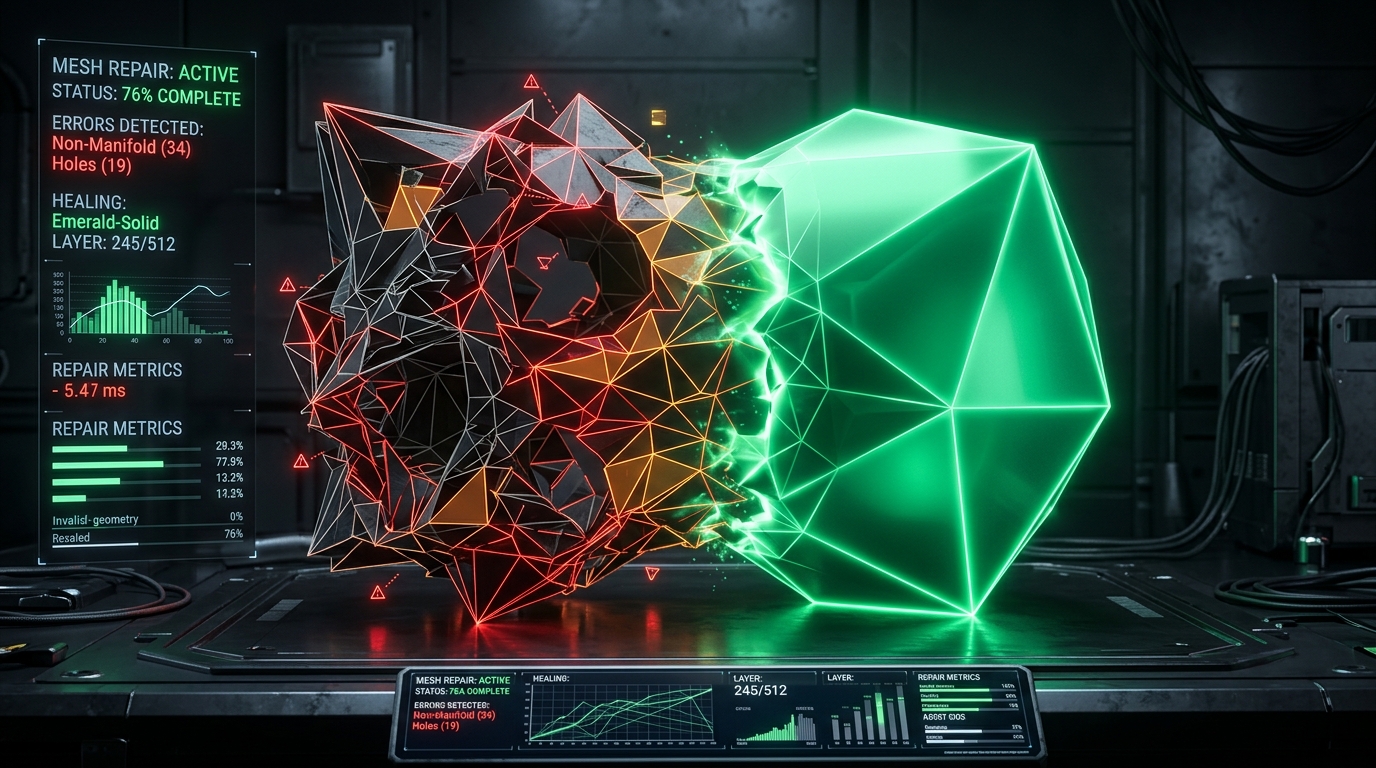
You slice your model. The slicer stops you cold: "Non-manifold edges detected." Or maybe it's Bambu Studio's yellow warning banner telling you the model has thousands of non-manifold edges, or a wall of red highlighted geometry, or your model just refuses to preview correctly. Either way, you're stuck with a file that looks fine in the viewer and won't print.
This is one of the most common failure points in 3D printing, and it gets worse the more you rely on downloaded models, AI-generated meshes, or files converted from other formats. Here's exactly what's happening, why it happens, and how to fix it.
What Does "Manifold" Actually Mean?
A manifold mesh is one that could physically exist as a real solid object. The technical rule: every edge in the mesh must be shared by exactly two faces. Think about a cube — every edge touches exactly two flat sides. That's manifold. Now imagine a triangle floating inside the cube with one edge that doesn't connect to anything, or a spot where three faces meet along the same line. Neither can exist as a real physical object.
This matters because of how slicing works. A slicer cuts your 3D model into flat 2D layers, then figures out which parts are "inside" (fill with plastic) and which are "outside" (leave empty). That calculation only works if the mesh forms a single, sealed, watertight volume. The moment there's a hole, overlap, or wrong-count edge, the slicer either throws an error, guesses wrong, or silently produces broken geometry.
What Non-Manifold Geometry Actually Looks Like
Four Types of Non-Manifold Problems
- Non-manifold edges (3+ faces sharing one edge): the most common type. A wall sticking out from the middle of another wall creates a junction shared by three faces instead of two.
- Non-manifold vertices / vertex fans: two separate solid volumes touching at a single point, like two cubes balanced on their corners at the same spot.
- Internal or self-intersecting faces: faces inside the mesh that create competing inside/outside boundaries, confusing infill calculations.
- Zero-thickness geometry / open shells: flat planes or unclosed surfaces with no volume that a printer can't extrude.
The Real Causes
Common Causes Ranked by Frequency
- CAD software exporting a hollow shell instead of a solid: extremely common with Fusion 360, SolidWorks files using surface modeling.
- Overlapping or duplicate faces: result of boolean operations or multi-software import/export cycles.
- Self-intersecting geometry: happens after mesh simplification, decimation, or combining separate objects without proper merging.
- T-junctions from splitting or cutting a model: cut planes not aligning across triangles at the seam.
- Neural mesh reconstruction artifacts: AI-generated models from photos produce gaps, degenerate triangles, or inconsistent normals around thin features and occluded areas.
The Thingi10K dataset study — which analyzed 10,000 real-world models from Thingiverse (Zhou & Jacobson, 2016) — found that 22% were non-manifold and 14% had inconsistent boundary edges. Non-manifold geometry isn't a rare edge case.
How to Fix: Bambu Studio / Orca Slicer
Both rely on Windows' built-in mesh repair utilities, invoked via right-click "Fix model." Works for simple cases (small holes, minor overlaps) but has no macOS or Linux equivalent. If automatic repair fails (warning count remains non-zero), the remaining issues are often from scaling or export rounding errors. Try re-exporting at 10x scale, then scaling back down in the slicer.
How to Fix: Cura
Cura handles mesh repair through its Mesh Fixes settings in the Print Settings panel — options like "Union Overlapping Volumes," "Remove All Holes," and "Extensive Stitching." For more control, the Mesh Tools plugin (Cura Marketplace) adds right-click options to fix normals, fill holes, and inspect quality. For persistent errors, external repair tools are more aggressive.
How to Fix: PrusaSlicer
PrusaSlicer has a "Fix through Netfabb" option (which uses the Windows 3D Model Repair Service API). This feature is Windows-only — macOS and Linux users need external tools. For anything beyond simple holes, expect to need an external tool.
External Repair Tools
External Repair Options
- Meshmixer (free, Autodesk): dedicated inspector and repair functions, shows where non-manifold geometry actually is.
- Online STL repair services: upload and get a repaired version back, but automated algorithms may distort fine detail on organic models.
- Blender: Select > Select All by Trait > Non-Manifold highlights every problem edge. More effort, best results if you understand geometry.
- Microsoft 3D Builder (free, Windows): simplest option for beginners, auto-detects and repairs on import with a single click.
Preventing Non-Manifold Geometry
Prevention Habits
- Export as solid, not surface: Verify CAD export uses solid body mode before saving to STL.
- Avoid complex boolean operations without cleanup: Inspect merge seams for overlapping faces.
- Use Solidify modifiers on thin geometry before export.
- Check the slicer layer preview before printing: it reveals hollow voids and missing perimeters.
- When generating from photos, use a pipeline with built-in validation to catch artifacts at generation time.
The Problem With Fixing It After the Fact
Every repair method shares the same limitation: they're applied after the mesh is already broken. An automated repair tool doesn't know what your model was supposed to look like — it fills holes with the mathematically simplest surface, which is fine for a flat wall and often visually wrong for detailed organic geometry.
The better fix isn't a better repair tool — it's not needing repair in the first place. That means catching manifold and watertight issues at generation time, before you download the file. That's the specific gap Voxelvia3D's image to STL generator and transparent PNG to STL converter are built to close — automated validation with a pass/fail scorecard before download. For instance, our photo to 3D figurine converter guarantees watertight outer boundaries and integrates flat bed-adhesion pedestals, while our 2D character to 3D collectible generator constructs quad-dominant, manifold topology that slices cleanly without self-intersections.
Quick Reference: Is Your Model Manifold?
Pre-Print Checklist
- Does your slicer preview look solid and complete, with no visible gaps or flickering geometry?
- Does the slicer accept it without a manifold/repair warning on import?
- If you have Blender or Meshmixer, run the non-manifold selection/inspector tool — zero flagged edges means you're clear.